Creating a Note
Notes may be created for a Note Service by using CygNet Explorer or by using applicable tools, like a Trend Tool. The following instructions explain how to create a note by using CygNet Explorer, but most of the steps apply to creating a note from any applicable interface.
To Create a Note from CygNet Explorer
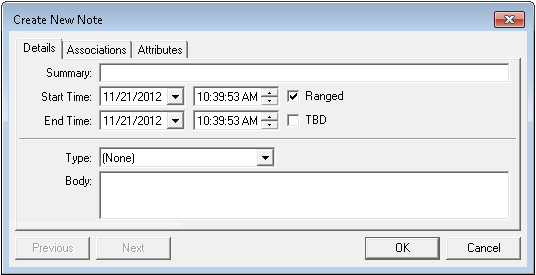
- Using CygNet Explorer, right-click in the Note service pane, then click New. A dialog box like the following appears:
|
Create New Note |
- Type relevant summary text in the Summary field.
- Specify the date to which the note applies:
- If this note is for a single point in time, only specify Start Time values.
- If this note is for a time span, check Ranged, then specify both Start Time values and End Time values. If you do not want to specify an end time but know that this is a ranged event, check TBD.
- If applicable, select a user-defined note type from the Type box. (None) is the default. See also Defining Note Types.
- In the Body field, type the note text.
- If this note is to be associated with one or more points or facilities, click the Associations page. See also Associating Facilities and Points.
- If this note is to have unique attributes, click the Attributes page. See also Assigning Note Attribute Values.
- When you are done creating your note, click OK to save and exit.
Details Page Properties
The following table lists and describes the properties of the Create New Note dialog box.
| Property | Description |
|---|---|
|
Summary |
This field contains relevant summary text. This field is useful but optional if the Type sufficiently defines the purpose of the note. Note: In Edit mode misspelled words will be underlined with a red wavy line; right-click the word to select a suggested correction from the system dictionary. Spell check is only available in a CygNet installation running on Windows Server 2016 and above. The system dictionary is located under %AppData%\Microsoft\Spelling. |
|
Start Time |
Specifies the point in time to which the note applies or specifies the beginning of a time span to which the note applies. |
|
End Time |
Specifies the ending of a span of time to which a note applies. Used in conjunction with Start Time and TBD. |
|
Ranged |
Check this box if your note applies to a time span, not just a point in time. For example, the Ranged option is useful for representing events like a station down for maintenance or a period of time during which a pig was in the line and line pressures spiked. |
|
TBD |
Check this box if you do not want to specify an end time but know that this is a ranged event. The end time for this note continues to extend as long as TBD is checked. |
|
Type |
List of user-defined values used to categorize notes. See also Defining Note Types. |
|
Body |
This is the body text of the note. If the Summary and/or Type adequately define your note, you might not need to fill out this field. Note: In Edit mode misspelled words will be underlined with a red wavy line; right-click the word to select a suggested correction from the system dictionary. Spell check is only available in a CygNet installation running on Windows Server 2016 and above. The system dictionary is located under %AppData%\Microsoft\Spelling. |


